



Summary
- Google Drive’s desktop app now no longer backs up to Google Photos; your cloud backups stay intact.
- Deselect Backup to Google Photos in Google Drive’s Preferences to avoid conflicting backups; files won’t be deleted.
- Switch to Google Photos: use the Plus button > Back up Folders For Continuous Backup, or Import Photos From Drive.
If you’re using the Google Drive desktop app to back up your images to Photos, you’ll want to change that starting today. The internet giant recently announced that it has cut off support for Google Photos, and from now on, it will no longer back up your files.
Fortunately, if you’d like to still keep your memories backed up, setting up the new system is easy.
Google Drive’s desktop just lost its Photos backup feature
You can swap over to the new system right now with a few clicks

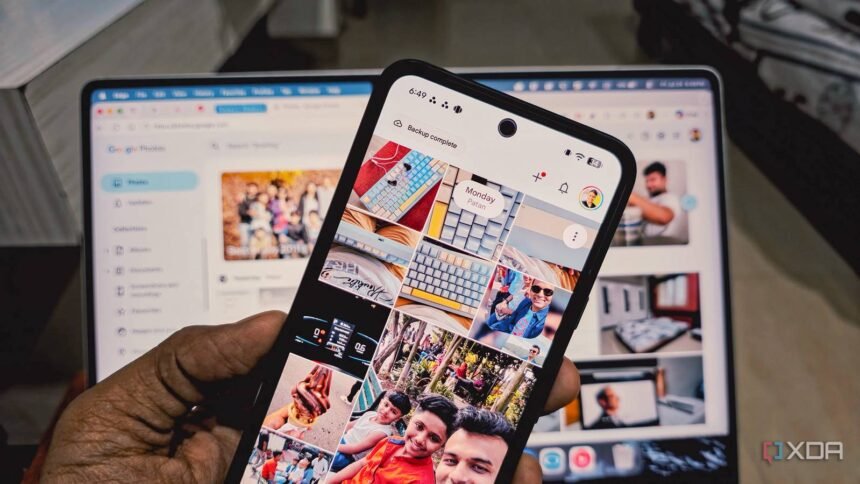
Before today, you could tell the Google Drive desktop app to back up a local folder to Google Photos automatically. However, as per the Google Photos Help documents, that feature is now gone. It no longer automatically backs up any photos in your designated folder, but all of your photos and any backups you have made will stay perfectly intact.
If you’d like to continue backing up your images to Google Photos, you’ll now need to hand over the process to Photos itself. Before you do that, it’s a good idea to detach Google Drive from your photos folder, so there’s no confusion between backups.
You can do this by opening up your Google Drive desktop app, going to Settings, then opening Preferences, then clicking Folders from your computer on the left and deselecting Back up to Google Photos for each location. Don’t worry; doing this will not erase the photos on your computer, nor will it erase your current backups in the cloud.
Once done, head over to the Google Photos website and click the Plus button at the top right. Your next step depends on what you want to do:
- For continuous folder backup: Select Back up folders. Pick your computer folders to back them up directly through your browser.
- To import from Google Drive: Click Google Drive to pull across photos already stored in your cloud Drive folders.
Google Photos will now ensure your photos are kept safe.
Disclaimer: This content has not been generated, created or edited by Finance SC. Publisher:
Source link
Source link